
How to turn an MP4 into a GIF without uploading it
You can turn an MP4 into a GIF without uploading it by using a converter that runs inside your browser. Open the MP4 to GIF tool, drop in your video, choose the seconds you want, and download the result. The video is read by your own browser and never sent to a server.
Runs in your browser. Nothing uploaded, no account.
Why it matters that nothing is uploaded
Many online converters send your file to their server, do the work there, and send a result back. That's slow on big files, and it means a copy of your video sits on a computer you know nothing about, for however long that company keeps it. For a meme, you may not care. For a screen recording with a customer's name in it, you might.
A tool that runs in the browser skips all of that. There's also no queue, because your own computer is doing the work.
The steps
- Open the MP4 to GIF tool and drop your video on the page. H.264 MP4 works in current browsers. Other MP4 types, WebM and MOV work if your browser can play them.
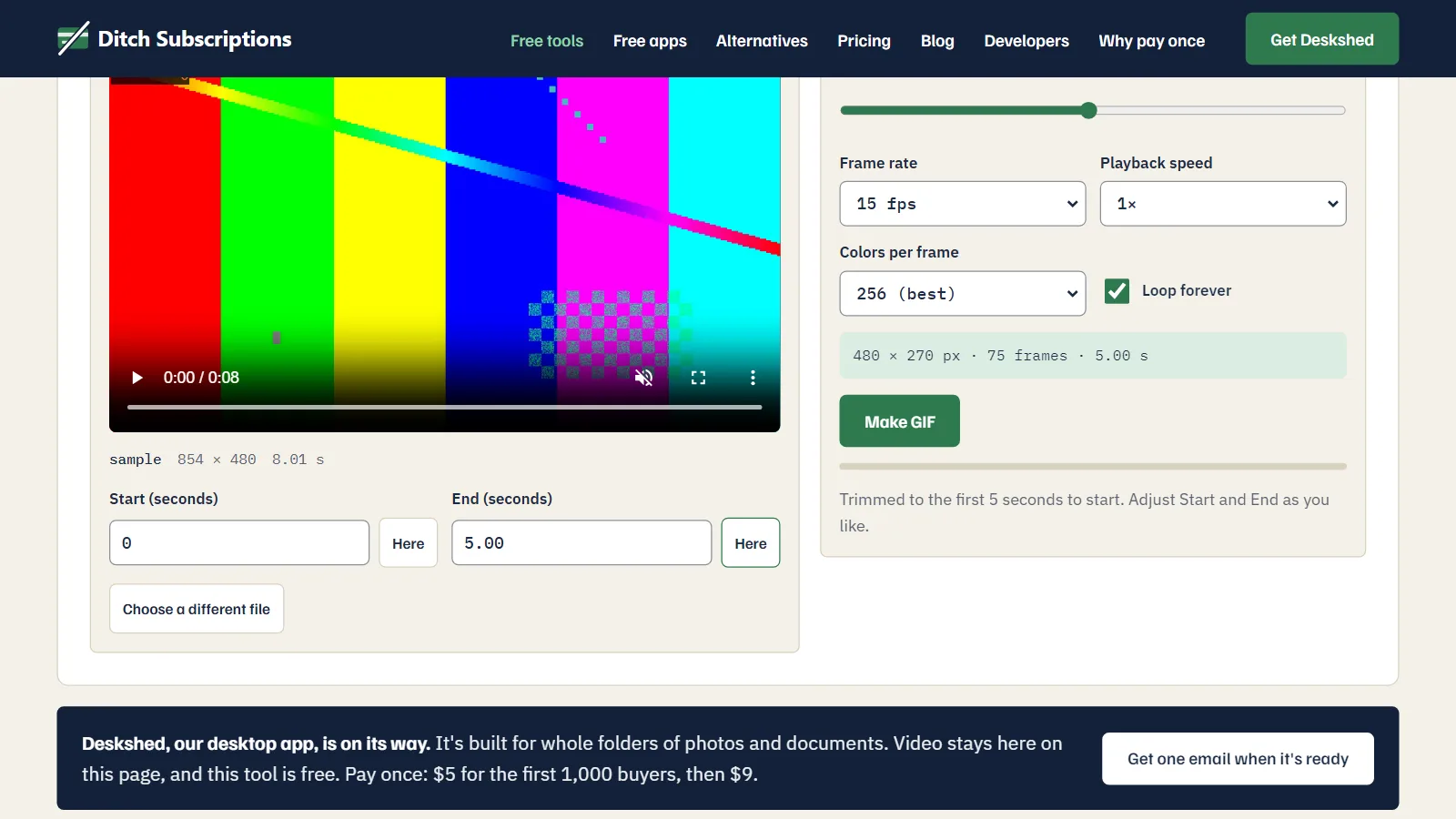
- Choose the start and end. The tool starts with the first 5 seconds selected. Type the seconds, or pause the video where you want and press Here.
- Set the width and frame rate. 480 pixels wide at 15 frames a second suits most chat apps and social posts.
- Press Make GIF, check the preview, and download it.
How to keep the GIF small
GIF is an old format. Each frame can use at most 256 colors, this tool stores every frame as a full picture, and GIF can't compress motion as well as a modern video format. That's why a few seconds of GIF can be bigger than a minute of MP4. These four settings make the most difference, biggest first:
- Width. Halving the width leaves a quarter of the pixels, so the file drops to roughly a quarter of the size. Try this first.
- Length. Twice as many seconds means about twice the file. Cut to the part that matters.
- Frame rate. Going from 15 to 10 frames a second removes a third of the frames. The lowest setting is 8, and motion can look choppy near there.
- Colors. Dropping from 256 to 64 helps most on simple footage such as screen recordings. On camera footage you'll see banding sooner.
Detailed footage also costs more. GIF compresses flat areas of color well within each frame, so a screen recording usually comes out smaller than camera footage of the same length.
Sending it somewhere that plays video? Use the video instead. Discord takes MP4 attachments, many other chat and social apps play short videos too, and an MP4 is usually far smaller than the same clip as a GIF. A GIF earns its place where video doesn't play, such as some email signatures and forums. Older desktop versions of Outlook may show only the first frame, so test before relying on it.
Is there a watermark or a limit?
The tool doesn't add a watermark. We don't set a file size limit either, though your browser's memory is a real one: clips of a few minutes are fine on a normal laptop, and hour-long files aren't what a browser tab is built for.
Pick a start and end, set the size and frame rate, get a GIF. Free, in your browser, nothing uploaded.