
How to remove location data from a photo before sharing it
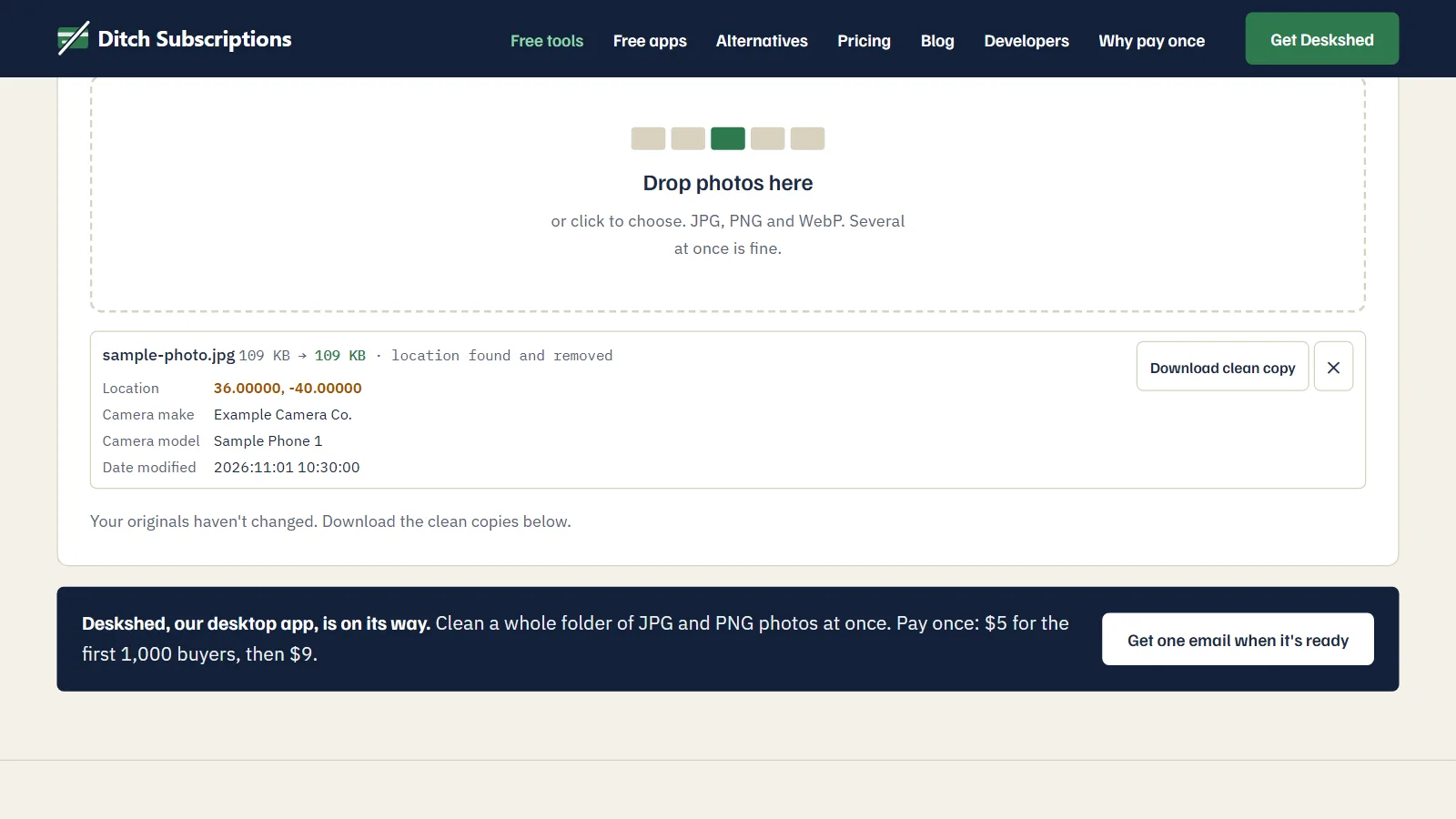
To remove location data from a photo, make a clean copy of the file and share that copy instead of the original. Drop the photo into Remove photo location data, see what it found, and download the clean copy; the photo is processed in your browser and isn't uploaded. If you're sharing straight from an iPhone, a built-in option covered below is quicker.
Runs in your browser. Nothing uploaded, no account.
The steps
- Open Remove photo location data and drop in one or more photos. It takes JPG, PNG and WebP.
- Read the details listed under each photo. A JPG with GPS data shows its coordinates on a Location line, along with details such as the date taken and the phone or camera model.
- Press Download clean copy for each photo. The new file has
-cleanadded to its name. - Share the clean copy. Your original isn't changed, so it still has its location.
To confirm it worked on a JPG, drop the clean copy back in. It should say "no camera or location details found."
Where is the location stored in a photo?
When location is turned on for the camera, the coordinates are saved inside the image file, in a block of data called EXIF. You can't see it in the picture, but it travels with the file when you email it or share it as a document. Anyone who has the file can read it with ordinary software.
What does the tool actually remove?
In a JPG, the tool cuts out the EXIF block, other metadata blocks such as XMP, and comments, while keeping the color profile. In a PNG, it removes text entries, EXIF data and the timestamp. In both, the picture isn't touched, so quality stays the same. Anything stored after the end of a JPG is dropped too.
A few cases work differently:
- A JPG's rotation tag is kept. Without it some photos would turn sideways, and it reveals nothing about you.
- Motion photos become stills. Motion photos from some Android phones carry a short video after the picture. In a JPG, the tool removes it, and says so.
- WebP files are always redrawn, which also drops the metadata.
- The details list only reads JPGs. A PNG or WebP won't show you what was in it, and says so. It's cleaned either way.
- HEIC isn't on the list of formats. iPhones often save photos as HEIC, so use the iPhone option below for those.
When is another option better?
You often don't need our tool for this. The options already on your device work well, and some handle formats our tool doesn't list.
- iPhone: In Photos, select the photo and tap Share. Tap Options near the top of the share screen, then turn off Location. Apple's guide says "Location Not Included" then appears above Options.
- Windows: Right-click the file, choose Properties, open the Details tab and click Remove Properties and Personal Information. You can make a copy with those details removed.
- Mac: Open the photo in Preview and choose Tools > Show Location Info, then look for Remove Location Info. Menu names vary by macOS version. This changes the file you opened, so duplicate it first if you want to keep the original.
- Android: This varies by phone and gallery app. Look for a location setting on the share screen or in the photo's details.
The browser tool is handy when you want to see what a file holds before you share it, or when you have several photos to clean at once.
Do social networks remove location anyway?
Some platforms appear to remove location from the copy other people download, but this varies, can change, and doesn't tell you what the platform itself keeps. Files sent by email or as documents can keep everything. If the location matters, clean the file first.
What won't this remove?
This only changes data stored in the file, not what the picture shows. No metadata tool can help with that, so a street sign, a house number or a view from your window is still there. Crop those out before you share.
It also can't reach copies you've already sent. Those keep their data.
And it doesn't stop your camera from saving location on the next photo. That's a separate setting on your phone, and you'd need to clean each new photo until you change it.
Our security page shows how to check for yourself that your photo stays on your device.
See and remove the location and camera details hidden in your photos. Free, in your browser, nothing uploaded.