
How to merge PDFs without uploading them, and how to check
To merge PDFs without uploading them, use a tool that does the work in your browser. Open Merge PDFs, add your files, set the order and download one combined PDF. The documents stay on your computer the whole time. You don't have to take our word for that, and the check below works on any site.
Runs in your browser. Nothing uploaded, no account.
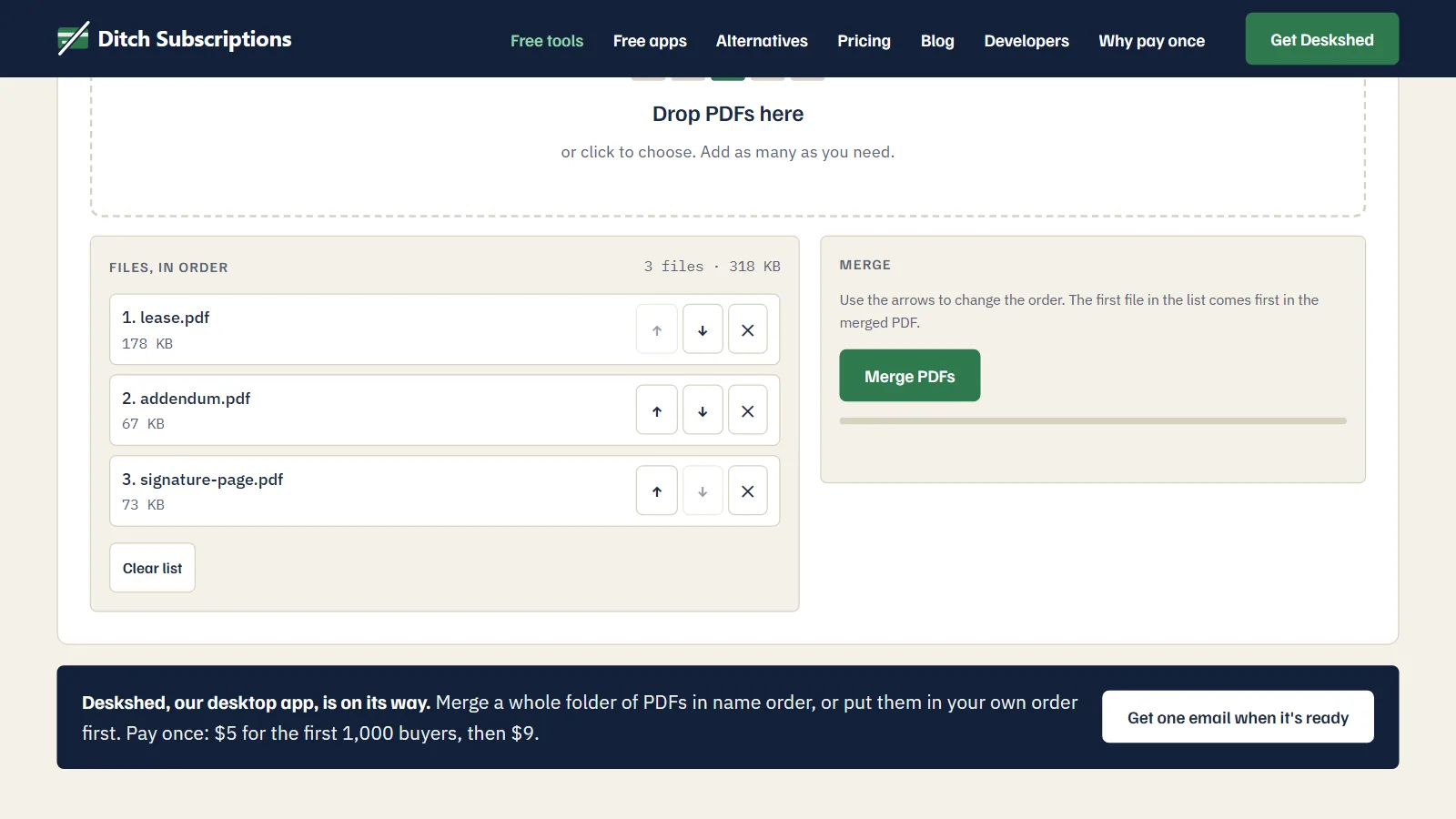
The steps
- Open Merge PDFs and drop in two or more PDFs.
- Use the arrows to set the order. The file at the top comes first.
- Press Merge PDFs, check the page count and size, and download.
Why it matters for PDFs in particular
The PDFs people merge are often sensitive ones: a signed contract with its attachments, a tax return, medical records, a rental application with a copy of a passport. Sending those to a free website means trusting that site's staff, its retention policy and its security, usually without reading any of them.
Plenty of those sites are run well and delete files promptly. You just can't tell from the outside, and with a browser-based tool you don't have to.
How to check that a tool really doesn't upload
"Your files stay private" is an easy sentence to put on a page. This test takes two minutes and works in Chrome, Edge and Firefox on a computer.
- Open the tool's page, then open the developer tools: F12 on Windows, Cmd+Option+I on a Mac.
- Click the Network tab. Every request the page makes will appear here.
- Clear the list using the clear button, then add your file and run the tool.
- Look for any request that sends data out. Click an entry and check its Request Method under Headers:
POSTorPUTis the one to inspect. The Size column only shows what came back, so it won't reveal an upload. Payload or theContent-Lengthrequest header shows how much was sent.
A tool that uploads sends your file in one of those requests. A tool that runs in the browser doesn't.
On our page you'll see one fetch of about 525 KB the first time you press the button: pdf-lib, the open-source library that does the merging. It comes down to your browser from our own site. Nothing goes up. Our security page explains why it can't.
For a stricter test, load the page, turn off your Wi-Fi, then run the tool. If the tool still produces your file, it did the work on your computer. That shows the tool doesn't need a server, though only the Network tab shows what a page sends once you're back online. Our merger needs that one library first, so run it once before you disconnect.
What can go wrong
- Password-protected PDFs can't be read. The tool tells you which file, so remove its password in the app that made it and try again.
- Fillable forms may not stay fillable, because the tool copies pages and not the form's data. Open the result and test it.
- Very large scanned books can run a browser out of memory. Merge them in smaller groups.
Split a PDF does the opposite. It pulls out a range of pages or saves every page as its own file, the same way.
Put several PDFs into one, in the order you choose. Free, in your browser, nothing uploaded.